

This guide provides an overview of integrating the TreezPay SDK into your platform. The SDK handles integrated card and ACH payments. Below are the steps and technical details for initializing the SDK, sending payment events, handling cancellations, refreshing configurations, and responding to SDK events.
Widget Initialization
The SDK is initialized by injecting a script into your webpage and configuring the necessary options.
The SDK must be initialized using the init command before you can use any of its functionalities, including the payment command. Typically, the SDK is initialized only once during the lifetime of the application.
Once initialized, you can proceed to call events like payment and refresh
Recommendation: For improved performance, we recommend preloading the PaySDK script using the <link> tag. This ensures that the script is cached before the page requiring initialization is loaded, reducing load times when the SDK is initialized.
Preload Example
<link rel="preload" href="https://js.treezpay.com/widget.js" as="script">This ensures that by the time the user navigates to the page where the init is called, the SDK script is already cached and ready to be used.
Code Example
(function (w, d, s, o, f, js, fjs) {
    w[o] = w[o] || function () { (w[o].q = w[o].q || []).push(arguments) };
    js = d.createElement(s), fjs = d.getElementsByTagName(s)[0];
    js.id = o; js.src = f; js.async = 1; fjs.parentNode.insertBefore(js, fjs);
}(window, document, 'script', '_treezpay', 'https://js.treezpay.com/widget.js'));

// init command
_treezpay('init', {
    element: document.querySelector('#paysdk-widget'), // Element to inject the widget
    channel: 'ffd', // optional. Options: 'ffd' (default), 'ecommerce', 'virtual_terminal'
    debug: true, // Enable logging for troubleshooting
    authTokenFactory: () => Promise.resolve('jwtstring'), // Fetch MSO Auth Token
    getEntityId: () => Promise.resolve('entity-id-uuid'), // Fetch MSO Entity ID
    theme: {
        positionFixed: true, // Set widget to full or fixed screen
    },
    dispensaryShortName: 'test-ach1', // optional. Dispensary Short Name
    entityName: 'Test Ach 1', // optional
    autoRenderPayments: true, // optional
    disablePaymentMethods: [ //example of disabling payment methods (optional)
      {
        paymentMethod: 'Credit',
        action: 'message', //hidden, or message (just for ecommerce channel)
        message: 'This payment type is not supported in guest checkout. Please login to pay with credit.',
      },
      {
        paymentMethod: 'Cash',
        action: 'hidden', //hidden, or message (just for ecommerce channel)
      }
    ],
    paylinkDeliveryMethod: 'iframe', // options: 'redirect' | 'iframe'
    onReady: () => {
      console.log('PaySDK is ready');
      // Safe to send payment event here
      window._treezpay('event', 'payment', { ... });
    }
});
Key Options
- element: The HTML element where the widget is injected.
- channel: Sets the SDK mode. Options: ffd | ecommerce | virtual_terminal | pos
- authTokenFactory: Function that returns the MSO authentication token.
- getEntityId: Function that returns the MSO Entity ID.
- theme.positionFixed: Determines if the widget takes the full screen (recommended for pole display).
- dispensaryShortName: Dispensary Name (kebab case), must be at most 10 characters long, optional.
- entityName: the Store Name, optional
- autoRenderPayments: When true renders the payment widget immediately on initialization. Else the widget will not render until a payment event is triggered. Optional. Defaults to true
- paylinkDeliveryMethod:
- Controls how the provider paylink is surfaced in the eComm SDK.
'redirect'opens the provider checkout in a new tab/window, showing the in-progress modal in the current page. (default)'iframe'embeds the provider checkout flow inline in an overlay iframe, locking the cart UI until payment completes or the user cancels.
- Controls how the provider paylink is surfaced in the eComm SDK.
- onReady: Optional callback function that fires when the SDK is fully initialized and ready to receive events. Use this to ensure the SDK is ready before sending payment events. Type: () => void
- disablePaymentMethods: Allow an Array of DisablePaymentMethod to disabled/hide payment methods
Object Struct:
interface DisablePaymentMethod {
  paymentMethod: 'ACH' | 'Credit' | 'Cash' | 'ATM' | 'Debit';
  action: 'hidden' | 'message';
  message?: string | null;
}
Where:
- Action:
hiddenwill hide the payment method from UI;messagewill show a modal with the message be provided,messageaction is just supported for ecommerce channel
AuthToken Creation
The TreezPay SDK requires a valid/permissoned TreezPay user or partner (v3) token for initialization. There are currently two supported methods for generating this token depending on your integration type:
Option 1: Treez User Authentication (v2)
This option is intended for scenarios where a Treez platform user is authenticating (e.g., permissioned org-level staff SDK enablement through an admin UI).
Authentication Flow:
- Send user credentials via POST to the login API.
- The credentials must be base64-encoded JSON.
- The resulting token is returned in the response and should be used to initialize the SDK.
Example cURL:
curl --location --request POST '<https://api.treez.io/auth-v2/login'>
--header 'x-application: SellTreezMSO'
--header 'Content-Type: text/plain'
--data '<base64-encoded-json>'
Base64 Payload Prep Example:
const userPayload = {
    username: 'your-username',
    password: 'your-password'
};

const jsonString = JSON.stringify(userPayload);
const base64String = btoa(jsonString);

// set this as the raw body in your POST request
console.log(base64String);
✅ This JavaScript snippet is often used in Postman Pre-request scripts, but can be implemented directly in any frontend or Node.js context.
Option 2: Partner Authentication (v3)
This method is designed for ISVs or payment SDK integrations where a partner is authorizing an external application via signed JWT on behalf of a Treez Org.
Integration Steps:
- Generate a public-private key pair locally.
- Submit your public key to: [email protected]
- Receive your unique certId and organizationId from Treez.
Use the authentication documentation for guidance: https://code.treez.io/reference/authentication
Helper Tool (v3 Token Generator):
Treez provides a dev utility to simplify JWT signing and token generation:
You will need:
- Your private key
- The
certId- The
organizationId(Treez-provisioned)Once generated, the JWT token can be passed into the authTokenFactory during PaySDK initialization.
Payment Event
To initiate a payment, use the payment event. The command can be resent if there are changes to the ticket, resetting the SDK state.
The payment event in the PaySDK is responsible for initiating the payment process, which triggers the UI to show payment options and collects payment details. The event accepts an object containing the payment details, which is validated based on the provided types and constraints.
Important: The payment event can only be used after the SDK has been successfully initialized using the init command. The SDK is typically initialized once during the lifecycle of the application.
Code Example
_treezpay('event', 'payment', {
    handlePaymentResponse: async (response) => {
        // Callback function to handle the asynchronous response.
        console.log(response);
    },
    originalAmount: 700, // Total amount in cents (required).
    employeeReferenceId: '777', // Employee reference ID (optional).
    transactingAssociateId: '5fb6af9f-498c-4770-9611-1923c208a2d6', // mso associate id, UUID (optional)
    ticketId: 'e08a49e4-f79f-434e-855c-a19a2ba8661f', // UUIDv4 for the ticket (optional).
    ticketAlphaNumId: 'iPQXXMN', // Alphanumeric ID for the ticket (required), must be at most 10 characters long.
    customer: { // Optional, but recommended for analytics and required by some payment methods or processors.
        firstName: 'Customer FirstName', //  optional.
        lastName: 'Customer LastName', // optional.
        phone: '5109889644', // optional.
        email: '[email protected]', // optional.
    },
    tip: 100, // Tip amount in cents (optional).
    taxes: 50, // Tax amount in cents (optional).
    discount: 25, // Discount amount in cents (optional).
    rewardDollars: 10, // Reward dollars in cents (optional).
    locationId: null, // Optional location ID for filtering payment methods.
    processorName: null, // Optional processor name for non-default processor.
});
Fields Explained
handlePaymentResponse(required):- Type:
(response: any) => Promise<void> - This is an asynchronous callback function triggered when the payment process completes or when the SDK receives an update on the payment status.
- You can handle the response by logging it or updating the UI, backend.
- Type:
originalAmount(required):- Type:
number - Description: The total amount for the payment, in cents. This must be a positive number (greater than zero).
- Example:
700represents $7.00.
- Type:
employeeReferenceId(optional):- Type:
string - Description: A reference ID for the employee initiating the transaction (
tb_users.employeeNumber). This is required to track the transaction's source. - Example:
777.
- Type:
transactingAssociateId(optional):- Type:
string - Description: A transacting user ID (MSO Associate ID,
tb_users.msoAssociateId) for the employee initiating the transaction. This is required to track the transaction's source - Example:
5fb6af9f-498c-4770-9611-1923c208a2d6
- Type:
ticketId(optional):- Type:
string(UUID) - Description: The unique identifier (UUID) for the ticket associated with the payment.
- Example:
e08a49e4-f79f-434e-855c-a19a2ba8661f
- Type:
ticketAlphaNumId(required for Treez POS users):- Type:
string(alphanumeric), must be at most 10 characters long. - Description: The alphanumeric ID for the ticket. It must contain only letters and numbers.
- Example:
SPQXXM
PLEASE NOTE: The ticketAlphaNumId is the required identifier needed to associate a payment with a specific Treez order. The Treez order number will be inserted here to ensure that successful payments are automatically updating the specified Treez order to PAID or AUTHORIZED.
- Type:
customer(optional):- Type:
MSOTreezPayCustomer(object) - Description: Optional but encouraged. This object contains customer details, which can help with analytics and personalized experiences.
- Fields in
customer:firstName(required): Type:string. The customer's first name.lastName(required): Type:string. The customer's last name.phone(required): Type:string. The customer's phone number.email(required): Type:string. The customer's email address.
- Example:
-
customer: {
    "firstName": "Customer FirstName",
    "lastName": "Customer LastName",
    "phone": "5109889644",
    "email": "[email protected]"
}
-
- Type:
tip(optional):- Type:
number - Description: The tip amount in cents. If provided, it must be a valid number (not
NaN). - Example:
100represents a $1.00 tip.
- Type:
taxes(optional):- Type:
number - Description: The tax amount in cents. If provided, it must be a valid number.
- Example:
50represents $0.50 in taxes.
- Type:
discount(optional):- Type:
number - Description: The discount amount in cents. If provided, it must be a valid number.
- Example:
25represents $0.25 in discounts.
- Type:
rewardDollars(optional):- Type:
number - Description: Reward dollars applied to the payment in cents. If provided, it must be a valid number.
- Example:
10represents $0.10 in reward dollars.
- Type:
locationId(optional):- Type:
string | null - Description: A UUID representing the Gateway or SellTreez Location ID, used to filter available payment methods by location.
- Example:
550e8400-e29b-41d4-a716-446655440000
- Type:
processorName(optional):- Type:
string | null - Description: Optional. The payment processor name, allowing you to select a specific processor for the payment. When both
locationIdandprocessorNameare provided, only payment methods related to the specified processor and location will be available. - Example:
'ATM Processor'
- Type:
Use Case 1: Filter by Location ID
- By default, all enabled payment methods are displayed.
- You can specify a
locationIdto filter payment methods specific to that location.
Use Case 2: Specify a Non-Default Processor
- If you want control over the available payment methods, specify both
locationIdandprocessorName. - The SDK will only display payment methods associated with the specified processor and location.
Cancel Payment Event
Cancel an ongoing payment session using the cancel event.
Code Example
_treezpay('event', 'cancel');Refresh Payment Methods Event
Refresh the payment methods and processor configurations using the refresh event.
Code Example
_treezpay('event', 'refresh');Event Handling
The SDK sends asynchronous responses through callback function. Below are key events and their sample payloads:
Event: Payment Canceled
Triggered when a payment is canceled by the user or system.
{
    "eventType": "PAYMENT_CANCELED",
    "userMessage": "Transaction Canceled",
    "processorName": "REGALA",
    "paymentMethod": "Debit",
    "data": {
        "id": "40a345a9-7882-4cc6-a224-13fad182482e",
        "invoiceId": null,
        "chargeId": null,
        "originalAmount": 700,
        "taxAmount": null,
        "tipAmount": 0,
        "feeAmount": 400,
        "providerPaymentType": null,
        "paymentDirection": null,
        "providerTransType": "sale",
        "entityId": "d2f41882-fb85-4b83-bb27-e61762c1ea92",
        "customer": {
            "email": "[email protected]",
            "phone": "5109889644",
            "lastName": "Test",
            "firstName": "Max"
        },
        "processorResponseCode": "-1",
        "processorResponseMessage": "canceled",
        "processorResponseDetailMessage": "by customer",
        "paymentDeviceConfigurationId": "9cbe9563-7e50-4d2d-8cc7-4940d91961f6",
        "employeeReferenceId": "777",
        "associateId": "f26aa4ef-3fb7-4972-99fd-19bdc9000a98",
        "transactingAssociateId": null,
        "status": "canceled",
        "referenceNumber": "F8rqNg8",
        "processorId": "8c615f92-0410-4d58-a3e2-fc4df02e32e5",
        "method": "ATM",
        "updatedAt": "2024-10-02T07:57:53.173Z",
        "cashbackAmount": 300,
        "ticketId": "503f7578-de02-4e51-8854-61435c394e0f",
        "sessionId": "0b8552f3-21dd-4625-b536-22233932ea51",
        "lastActionTaken": "sale"
    }
}
Event: Payment Approved
Triggered when a payment is successfully approved.
{
    "eventType": "PAYMENT_APPROVED",
    "userMessage": "Approved. Thank you!",
    "processorName": "PAYOMI",
    "paymentMethod": "ATM",
    "data": {
        "id": "4ff68d43-cbd5-4fa5-8afe-395f661139ac",
        "invoiceId": null,
        "chargeId": null,
        "originalAmount": 700,
        "taxAmount": null,
        "tipAmount": 0,
        "feeAmount": 0,
        "providerPaymentType": null,
        "paymentDirection": null,
        "providerTransType": "sale",
        "entityId": "d2f41882-fb85-4b83-bb27-e61762c1ea92",
        "customer": {
            "id": "1",
            "email": "[email protected]",
            "phone": "5109889644",
            "lastName": "Test",
            "firstName": "Max"
        },
        "processorResponseCode": "-1",
        "processorResponseMessage": "approved",
        "processorResponseDetailMessage": "Approved",
        "paymentDeviceConfigurationId": "9cbe9563-7e50-4d2d-8cc7-4940d91961f6",
        "employeeReferenceId": "777",
        "associateId": "f26aa4ef-3fb7-4972-99fd-19bdc9000a98",
        "transactingAssociateId": null,
        "status": "approved",
        "referenceNumber": "F8rqNg8",
        "processorId": "8c615f92-0410-4d58-a3e2-fc4df02e32e5",
        "method": "ATM",
        "updatedAt": "2024-10-02T08:00:00.187Z",
        "cashbackAmount": 300,
        "ticketId": "503f7578-de02-4e51-8854-61435c394e0f",
        "sessionId": "0b8552f3-21dd-4625-b536-22233932ea51",
        "lastActionTaken": "sale"
    }
}
Event: Payment Error
Triggered when an error occurs during payment processing.
{
    "eventType": "PAYMENT_ERROR",
    "userMessage": "invalid pin entry",
    "processorName": "PAYOMI",
    "paymentMethod": "ATM",
    "data": {}
}
Event: Payment Method Selected
Triggered when a user clicks the "Others" button or any other payment method option.
{
    "eventType": "PAYMENT_OPTION_SELECTED",
    "data": {
        "option": "Others" // ACH, Debit, Rounded Debit
    }
}
Mounting Additional UI Components
To render additional UI components such as the Payment Options Banner, use the mount and unmount events.
Note: The mount event must be called after init has been executed.
Code Example (Mounting a Component)
To mount a component, include a placeholder element where it should be rendered and call the mount event:
<div id="paysdk-component"></div>_treezpay('event', 'mount', {
component: 'component-name', // predefined SDK component name
element: document.querySelector(`#paysdk-component`),
});Code Example (Unmounting a Component)
To remove a mounted component, call:
_treezpay('event', 'unmount', { component: 'component-name' });Fields
component(required)- Type:
string - Description: The name of the component to mount/unmount. Must be one of the predefined SDK components.
- Type:
element(optional)- Type:
HTMLElement - Description: The DOM element where the component should be mounted.
- Type:
Available Components for Mounting
The following components are currently available for mounting:
| Component name | Description | |
|---|---|---|
payment-options-banner | Displays available payment methods before checkout. |  |
Channels
Sets the SDK mode.
- Options:
‘ffd'|‘ecommerce'|'virtual_terminal'|'pos'- Default is
'ffd'
- Default is
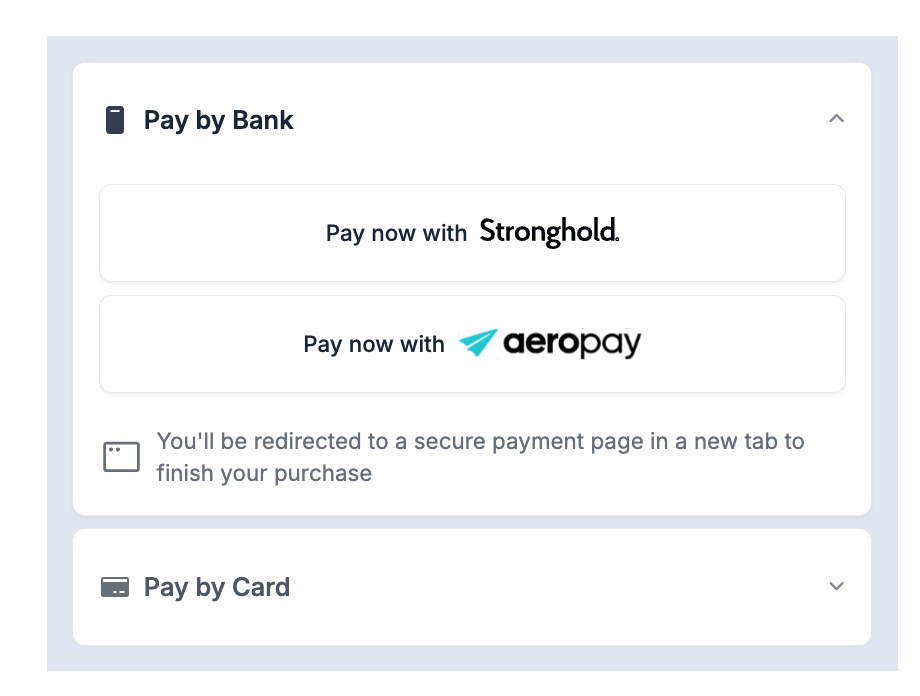
The UI and behavior vary by channel, each designed for a specific use case:
-
ffd: For front-facing displays in physical retail environments.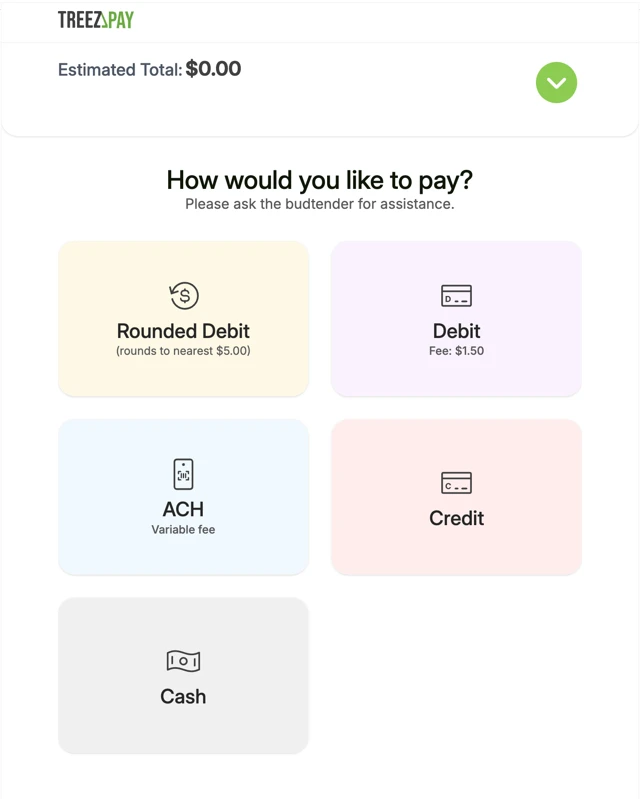
-
ecommerce: For online checkout experiences in web or mobile applications.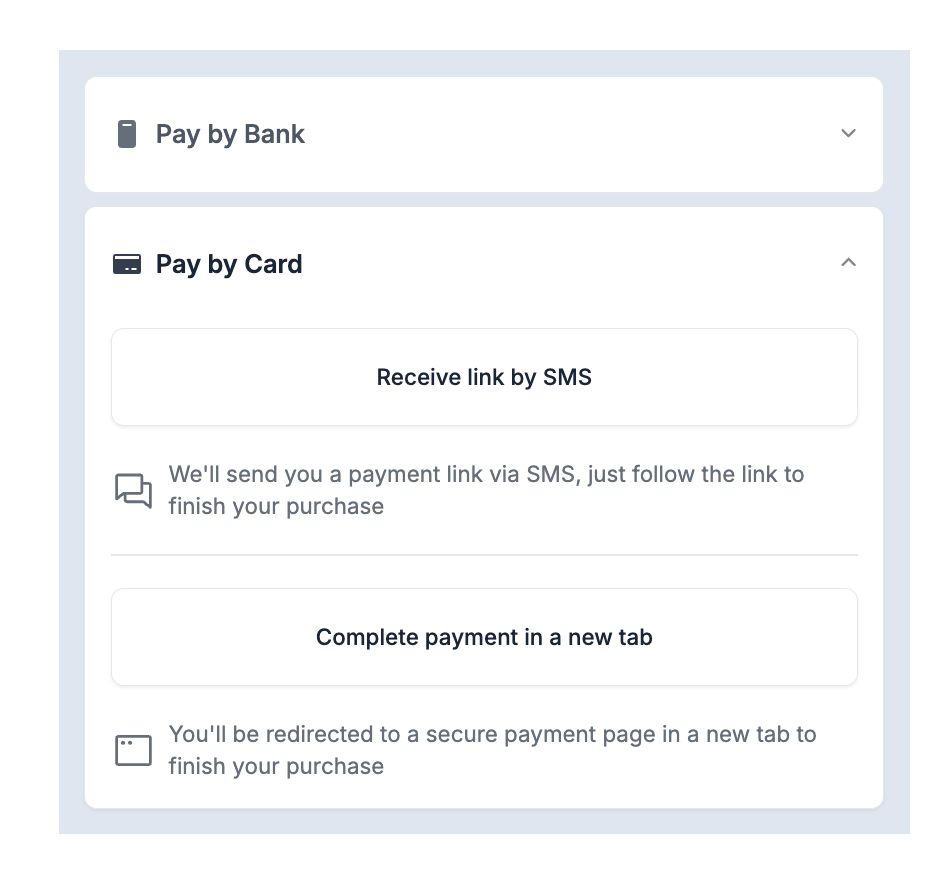
-
virtual_terminal: For point-of-sale (POS)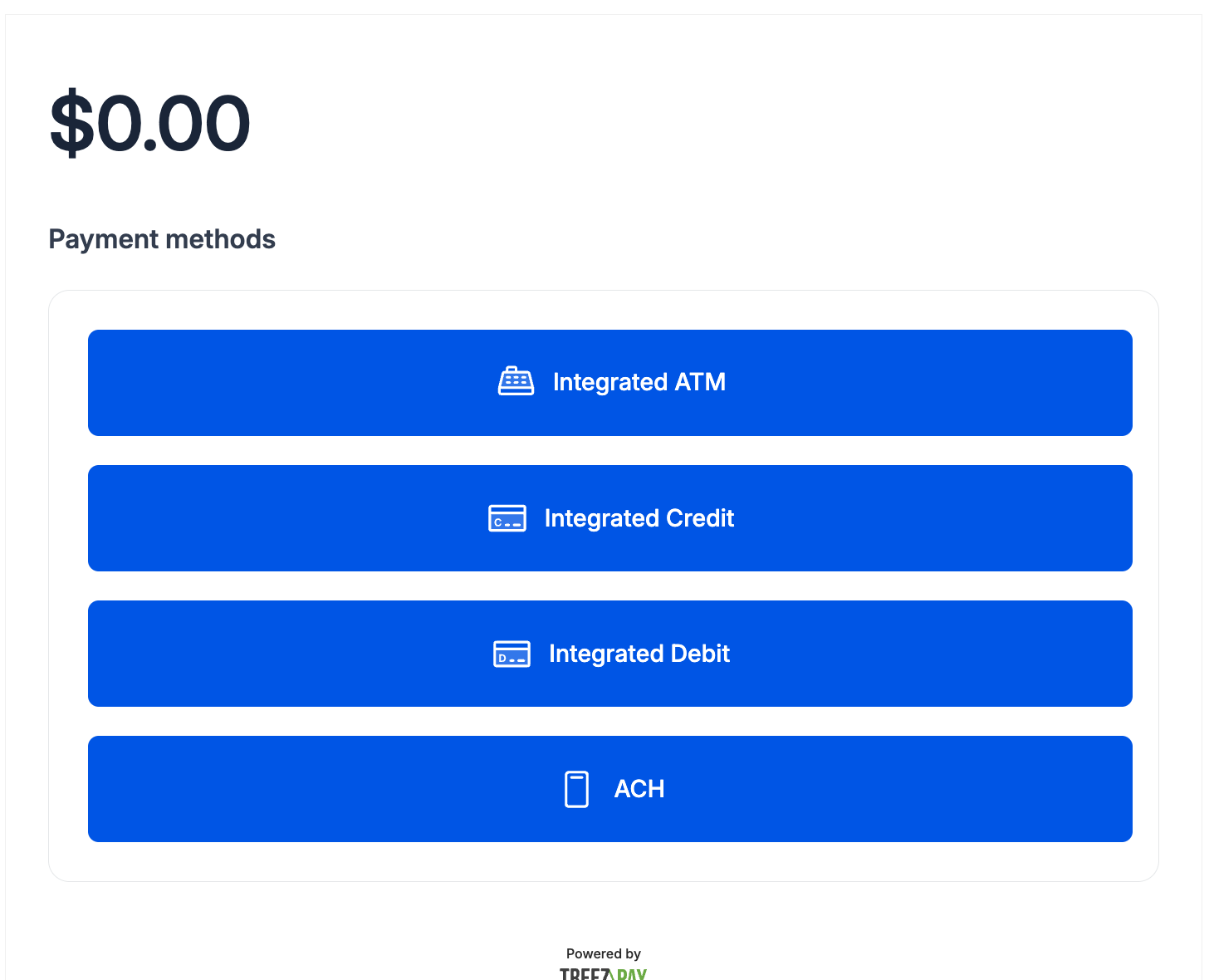
SPA Integration Guide
When integrating into SPA with client-side routing, include a cleanup function in your component's unmount lifecycle to properly reset the widget state when navigating between pages.
The unloadWidget function removes the widget's DOM elements and clears global state allowing the SDK to reinitialize cleanly when the user returns to the payment page.
Example React Implementation:
import React, { useEffect } from 'react';

const unloadWidget = (win: Window, instanceName) => {
  // Check if the widget is already loaded
  if (!win[`loaded-${instanceName}`]) {
    console.warn(`Widget with name [${instanceName}] is not loaded.`);
    return;
  }

  // Remove the target widget element if it exists
  const targetElement = win.document.getElementById(`widget-${instanceName}`);
  if (targetElement) {
    targetElement.remove();
    console.log(`Removed widget element [${instanceName}] from the DOM.`);
  }

  // Remove the script tag associated with the widget
  const scriptElement = win.document.getElementById(instanceName);
  if (scriptElement) {
    scriptElement.remove();
    console.log(`Removed script element [${instanceName}] from the DOM.`);
  }

  // Clean up global window properties
  delete win[`loaded-${instanceName}`];
  delete win[instanceName];

  console.log(`Unloaded widget instance [${instanceName}] and removed from window object.`);
};

const DEFAULT_NAME = '_treezpay';

const PaySDKLoader = ({totalAmount, entityId, locationId, authTokenFactory, handlePaymentResponse}) => {
   const sendPaymentEvent = () => {
      window._treezpay('event', 'payment', {
        handlePaymentResponse: async (response) => {
          console.log(response);
          handlePaymentResponse(response);
        },
        originalAmount: totalAmount * 100,
        referenceNumber: '48916c04-e0dc-4c19-8d5e-4e76d4069661',
        employeeReferenceId: '777',
        customer: {
          firstName: 'Customer FirstName',
          lastName: 'Customer LastName',
          phone: '5109889644',
          email: '[email protected]',
        },
        ticketId: 'ticket-b721-19199c977958',
        ticketAlphaNumId: 'test2-TICKET-xx7x-2',
        entityId: 'entityId',
        locationId: 'locationId' || '', // Optional location ID
        paymentMethod: 'paymentMethod' || '', // Optional payment method
        entityName: 'entityName' || '' // optional entity name
     });
    };

  useEffect(() => {
    // Inject the script
    (function (w, d, s, o, f, js, fjs) {
      w[o] = w[o] || function () { (w[o].q = w[o].q || []).push(arguments) };
      js = d.createElement(s), fjs = d.getElementsByTagName(s)[0];
      js.id = o; js.src = f; js.async = 1; fjs.parentNode.insertBefore(js, fjs);
    }(window, document, 'script', '_treezpay', 'https://js.treezpay.com/widget.js'));
    // Script initialization
    window._treezpay('init', {
      element: document.querySelector('#paysdk-widget'),
      debug: true,
      authTokenFactory,
      entityId,
      locationId,
      theme: {
        positionFixed: false,
      },
      onReady: () => {
        sendPaymentEvent();
      }
    });

    // Cleanup function to remove _treezpay when the component unmounts
    return () => {
      unloadWidget(window, DEFAULT_NAME);
    };
  }, []); // Empty array ensures this effect runs only once when the component mounts

  return (
    <div id="paysdk-widget" />
  );
};

export default PaySDKLoader;
Reference
- Playground: PaySDK Widget Sandbox Playground
- Latest Unstable Dev Script: TreezPay SDK Widget Script
- Latest Unstable Dev Script CDN: TreezPay SDK CDN
- FFD SDK Styling Customization Framework: LINK COMING SOON
- Flutter Integration Example: LINK COMING SOON
FAQ
Why am I seeing a regex error when loading widget.js?
You saw that regex error because the page was not using the correct character encoding, some characters were misinterpreted (corrupted) before the JavaScript engine even saw them. That corruption produced an invalid character range which triggered the regex error.
How do I fix it?
Make sure your page explicitly declares UTF-8 encoding by adding the following tag inside the <head> of your HTML:
<meta charset="UTF-8">This forces the browser to decode the file correctly, so the characters stay intact and the regex becomes valid again.